The form has to be in someone’s inbox by five, the printer is out of ink, and the nearest scanner is a short drive away.
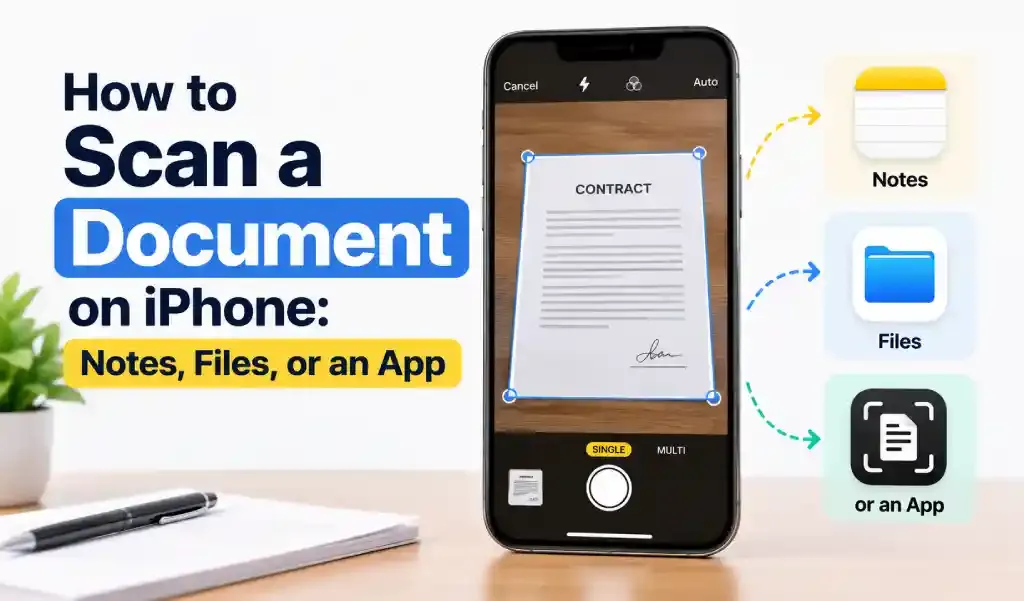
You don’t need one. The iPhone’s built-in document scanner, available in the Notes and Files apps (and in Preview on iOS 26), finds the edges of a page, straightens the image, and gives you a scan you can save as a PDF. To scan a document on iPhone with Notes, open a note, tap the paperclip, choose Scan Documents, and hold the phone over the page. Here are the steps for each app, habits that make scans cleaner, and when a dedicated scanner app earns its place.
How do you scan a document with the Notes app?
Open a note, tap the paperclip, and choose Scan Documents. Apple’s support guide lays out the flow:
- Open Notes and start a new note, or open an existing one.
- Tap the paperclip (Attachment) button, then tap Scan Documents. Inside an open note, the More (•••) menu also has a Scan option.
- Hold your iPhone over the page. In Auto mode, it captures on its own. Otherwise, tap the shutter button or press a volume button.
- Drag the corners so the box lines up with the page edges, then tap Keep Scan.
- Add more pages the same way, then tap Done.
Auto mode can fire before you’ve lined up the next page, so switch to the shutter button for multi-page documents. Menu names shift slightly between iOS versions, but the flow stays the same.
How do you scan to PDF with the Files app?
Use Files when you want the scan saved as a PDF in a folder you choose, such as iCloud Drive. Open Files, tap the More (•••) button, and choose Scan Documents. Capture each page, tap Keep Scan, and tap Done when you have them all. Pick a location, then tap Save. Every page you add lands in the same PDF, so scanning multiple pages into one file takes no extra steps.
Rename it before you send it. Press and hold the file, tap Rename, and use a name you’ll recognize later, like “Lease_Signed_2026.” A scan made in Notes becomes a PDF once you save it to Files from the scan’s menu in the note.
Can the Preview app scan documents on iPhone?
Yes, on iPhones running iOS 26 or later. Preview, Apple’s PDF and image app, now comes preinstalled on iPhone, and Tom’s Guide notes that opening it gives you a Scan Document option. It’s the handiest choice when you want to fill in, sign, or mark up the page.
How do you get a clean scan on the first try?
Good light, a dark surface, and a steady hand do most of the work.
- Light the page evenly. A bright room helps, and your own shadow is a common culprit. For stubborn shadows, see removing shadows from scanned documents.
- Put the paper on a dark, plain surface. The contrast makes the page edges easy to detect.
- Hold the phone parallel to the page. A straight-on shot keeps the text evenly sharp and all four corners in frame.
- Choose the filter for the job. Grayscale or black and white usually keeps text crisp and files smaller. Save color for IDs, photos, and pages with colored stamps. If a portal rejects your file for size, here’s how to reduce PDF file size on iPhone.
How do you sign or send a scanned document?
A scan saved from Files is already a PDF, so open it, tap Share, and choose Mail, Messages, or AirDrop. To sign a scan in Notes, tap the document in your note, tap Markup, tap Add, choose Signature, place it on the page, and tap Done.
When is a scanner app worth installing?
When the job grows beyond a single stack of paper. The built-in tools capture pages well, but they get awkward once a PDF has to combine a scan with other files. Picture a rental application: a signed form on paper, an ID photo saved as HEIC, and a Word cover page, all of which need to land in one PDF. Or a scan that’s too big for an upload limit.
That’s where an app built around scanning and conversion saves taps. PDF Converter: HEIC to PDF, the app we make, scans multiple pages in one go, converts HEIC, JPG, PNG, and Word files to PDF, and merges or splits PDFs, so you aren’t bouncing between Notes, Photos, and Files. If photos are the main problem, here’s how to combine several HEIC photos into one PDF. If you only scan a receipt now and then, Notes is plenty.
Final thoughts
Next time paper lands in your hands, open Notes, tap the paperclip, and scan it. You’ll have a scan ready to share in about a minute. Before you send it, zoom in and check that the corners are intact and the smallest text is readable. Retaking the scan now beats explaining a blurry attachment later.