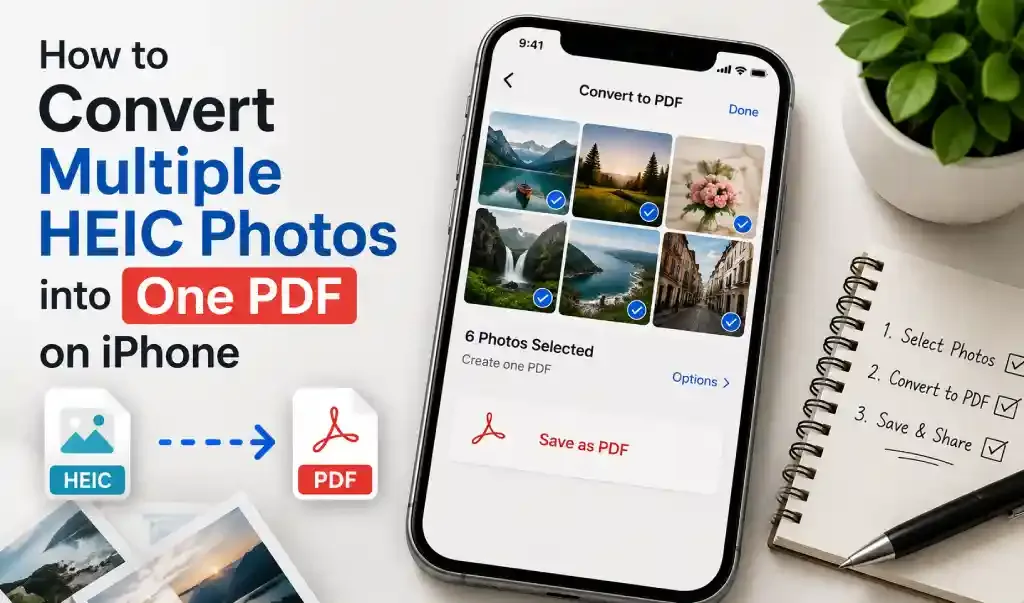
If you've ever tried to send five receipt photos or a stack of scanned pages to someone, you already know the problem: nobody wants five separate attachments when one PDF would do. Your iPhone can combine multiple HEIC photos into a single PDF without any extra software, through the Photos app, the Books app, or the Files app. A dedicated converter app is worth it too, mainly for control over ordering and quality once you're doing this more than once. Here's exactly how each one works.
Why Combine HEIC Photos into One PDF?
HEIC is the format your iPhone saves photos in by default, and has been since iOS 11. It's efficient, but plenty of forms, portals, and email systems still don't handle it well, especially outside the Apple ecosystem, and that friction shows up before you even get to the multi-photo problem. A landlord asking for both sides of your ID, an insurance claim with several damage photos, a handwritten form you photographed page by page, receipts for an expense report: none of these are one-photo problems, and sending five separate HEIC files instead of one PDF is usually the reason you get asked to resend it in "an actual document."
Method 1: Use the Photos App (Print Trick)
This is the most direct method and doesn't require moving your photos anywhere first.
- Open Photos and tap Select.
- Tap each photo you want to include, in the order you want them to appear. This matters: the order you tap is the order the pages come out in, and neither this method nor the Books method below makes it easy to fix afterward.
- Tap the Share icon and choose Print.
- On the Print Options screen, tap Paper Size and choose Photo Large so the images fill more of the page instead of the default letter-size crop.
- Tap the Share icon again, at the top of the screen.
- Choose Save to Files, pick a location, and save.
One thing to watch: this method fits each photo onto a standard print page, which can add white space around images that aren't the same shape as a printed page. For documents and receipts it looks fine. For photos where edge-to-edge detail matters, the Books method holds up better.
Method 2: Use the Books App (Better Quality, One Extra Step)
Most people don't know Books can do this, but it's built in and keeps more of the original image quality than the Print method.
- Open Photos and select the photos you want to include.
- Tap the Share icon.
- Scroll the app row and select Books (tap More first if you don't see it).
- Books converts the photos into a PDF and saves it to your Books library automatically.
- Open Books, find the document, tap the ••• button, and choose Share PDF to save it to Files or send it elsewhere.
It's one more step than the Print trick, but the payoff is a PDF that doesn't get squeezed into print-page dimensions.
Method 3: Use the Files App (If Your Photos Are Already There)
If your HEIC photos came in through email, Messages, or AirDrop and are already sitting in the Files app rather than your camera roll, this is the fastest route, since it skips the print-preview step entirely.
- Open Files and navigate to the photos.
- Tap Select, then choose the photos you want.
- Tap More (the ••• icon).
- Choose Create PDF.
The combined PDF lands in the same folder, ready to rename and share.
Method 4: Use a Dedicated Converter App
All three methods above work, but they share the same limitation: once you've selected your photos, the order and layout are mostly locked in. If you tapped them in the wrong sequence, your only real fix is starting over.
This is where a converter app earns its keep, especially once this stops being a one-time task. If you're regularly turning stacks of receipts, ID pages, or multi-page forms into PDFs, an app like PDF Converter HEIC to PDF lets you import the photos, arrange them into the order you actually want after the fact, and export at full quality, without the print-page constraints of Method 1 or the extra detour through Books in Method 2. The same import-and-arrange flow also handles mixing HEIC photos with other formats in one file, which matters if your batch includes a scanned signature page or an existing PDF alongside your photos, something none of the three native methods above can do.
Comparing the Methods
| Method | Extra Steps | Order Control | Image Quality | Best For |
|---|---|---|---|---|
| Photos (Print) | Low | Must select in order | Good | Quick, one-off jobs |
| Books | Medium | Must select in order | Better | When quality matters most |
| Files (Create PDF) | Low | Depends on file order | Good | Photos already saved to Files |
| Converter app | Low | Full control, reorder anytime | Best | Frequent or large batches |
Which Method Should You Use?
- You need this done in the next minute → the Photos app Print trick.
- The photos need to look as close to the originals as possible → the Books method.
- Your HEIC files are already in the Files app → the Files app Create PDF action.
- You do this often, or you're not confident you'll get the order right on the first try → a converter app.
Frequently Asked Questions
Do I need to convert HEIC to JPG before combining photos into a PDF? No. All three built-in methods handle HEIC directly. There's no separate conversion step required first.
Does the order I select photos in actually matter? Yes, for the Photos app and Books methods. Whatever order you tap the photos in is the order they appear in the finished PDF, and neither method offers an easy way to reorder afterward. Select carefully, or use a converter app that allows reordering.
Will combining multiple HEIC photos into one PDF reduce their quality? A little, depending on the method. The Print trick fits images to a standard print page, which can add margins. The Books method and most converter apps preserve more of the original image.
Is there a limit to how many photos I can combine at once? Not a hard limit on iPhone, but large batches (20 or more photos) get harder to manage manually since you have to tap each one individually and get the order right the first time. This is where a converter app's reordering makes more of a difference.
What if my batch has a mix of HEIC and JPG photos? That's fine. All three built-in methods and any converter app handle mixed formats in the same batch. iOS treats them the same way once they're selected, so there's nothing to sort or convert first.
Can I combine HEIC photos with existing PDFs into one file? Not with the native Photos, Books, or Files methods; those only combine images with each other. A converter app that supports merging different file types is the more direct route for that.
Final Thoughts
For a quick, one-time job, the Photos app Print trick is fine, just get the selection order right the first time, since none of the free methods make it easy to fix afterward. If quality matters more than speed, the Books trick is worth the extra step, and if your photos are already sitting in the Files app, that route skips the detour entirely. If this is something you do regularly, whether for receipts, forms, or applications, the reordering and consistency of a dedicated converter app will save more time over a month than any single trick saves in one sitting.
Whichever method you use, open the finished PDF before sending it anywhere, just to confirm the pages landed in the right order.