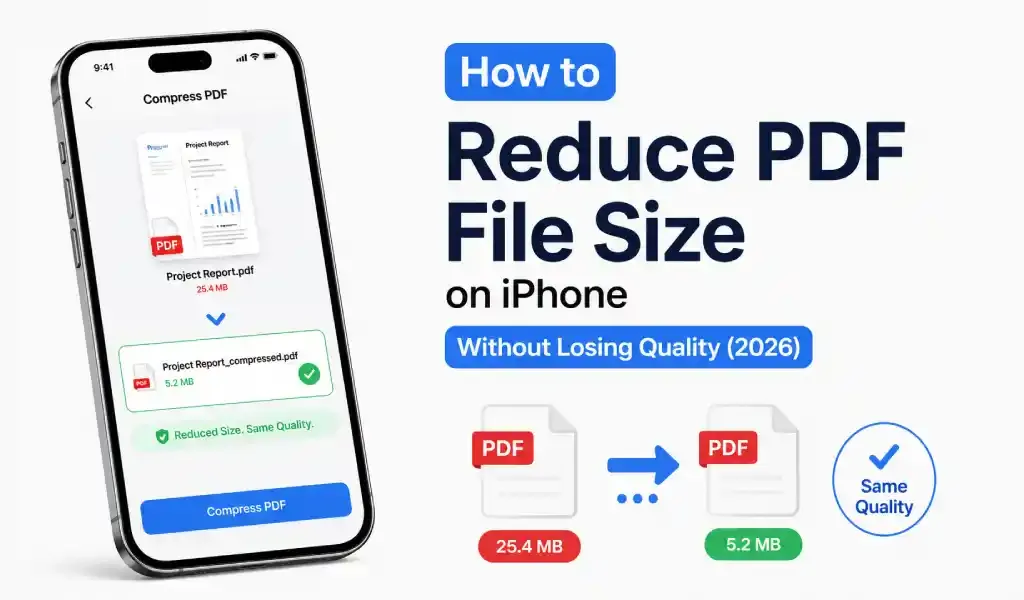
You can reduce PDF file size on iPhone without losing quality by scanning in grayscale instead of color, choosing a balanced compression setting in a PDF converter app, lowering the scan resolution to around 200–300 DPI, and removing unnecessary pages before saving. For most documents, these steps can shrink a 20MB scanned PDF down to 2–3MB while the text stays perfectly readable.
That is the short answer. Now let's look at why iPhone PDFs get so large in the first place, and which method fits your situation best.
Why Are Scanned PDFs So Large on iPhone?
Here is something most people never realize: a PDF you scan with your phone is not really a text document. It is a stack of photographs wrapped in a PDF file.
When you scan a page with your iPhone camera, the app captures a full-resolution image. Modern iPhone cameras shoot at 12 to 48 megapixels. That is far more detail than any document needs. A single scanned page can easily weigh 3–5MB, so a five-page contract quickly becomes a 20MB file.
Compare that to a PDF exported from Word or Pages. Those files store actual text characters, which take almost no space. A ten-page text-based PDF might be 200KB.
This is why your scanned resume gets rejected by a job portal with a "file too large" error while someone else's PDF sails through. The problem is not the PDF format. It is the images inside it.
Three things inflate scanned PDF size the most:
- Color mode. Full-color scans store three times the data of grayscale scans, even when the document is just black text on white paper.
- Resolution. Anything above 300 DPI adds file size without adding readability for normal documents.
- Uncompressed images. Some scanning tools save raw camera images with no compression at all.
Fix these three things and you fix the file size problem.
Method 1: Rescan in Grayscale or Black & White
If your PDF is a scan of a text document, this is the single biggest win available.
Most scanner apps default to color because it looks nicer in previews. But a contract, form, receipt, or set of class notes does not need color. Switching to grayscale typically cuts file size by 50–70%. Black & white (sometimes called "document" or "B&W" mode) cuts it even further and often makes text look sharper, because the app boosts contrast between ink and paper.
When to keep color: photos, ID cards where color matters, design work, or anything with charts that rely on color coding. For everything else, grayscale is the smarter default.
Method 2: Use the Right Compression Level When Converting
If you are converting images to PDF rather than scanning, compression settings matter more than anything else.
A good converter app gives you quality options when you export. The trick is knowing that "maximum quality" is almost never necessary. Text remains crisp and readable at medium compression because the human eye is far more forgiving with documents than with photographs.
This is where a dedicated converter app earns its place on your phone. I use PDF Converter HEIC to PDF for this on my own device, mainly because it handles the iPhone-specific problem well: photos of documents sit in your camera roll as HEIC files, and converting them straight to PDF with sensible quality output means you skip the giant intermediate files entirely. Scan or upload, convert, done. The output PDFs come out clean and readable without ballooning to email-breaking sizes, and it also merges multiple pages into one file, which matters for the next method.
A practical rule of thumb for target sizes:
| Use case | Safe target size |
|---|---|
| Email attachment | Under 10MB (under 5MB to be safe) |
| Job application portals | Usually under 2–5MB |
| Government / visa forms | Often under 1–2MB per file |
| WhatsApp document sharing | Under 100MB (rarely an issue) |
| Cloud storage / archiving | Size barely matters |
If your file already meets the target, stop optimizing. Compressing further only trades away quality you might want later.
Method 3: Remove Pages You Don't Need
This one is obvious once you hear it, yet almost nobody does it.
Before sending a PDF, ask: does the recipient need every page? Scanned bundles often contain blank backs of pages, duplicate captures from a shaky first attempt, or cover sheets nobody reads. Deleting two unnecessary pages from a five-page scan cuts the file by 40% with zero quality loss, because you removed data instead of compressing it.
Split-and-merge tools make this painless. Split the PDF, keep the pages that matter, merge them back into one clean file.
Method 4: Free Built-In and Online Options (With One Warning)
To be fair, you do not always need an app for this.
The Files app on iOS can create PDFs from images, though it gives you no control over compression, so results are hit or miss on size.
Online compressor websites work too, and some are genuinely good. But think before uploading. A PDF that needs compressing is often a PDF that matters: a passport scan, a signed contract, a bank document. Uploading sensitive documents to a random website means your file travels to someone else's server, and you are trusting their deletion policy. For anything personal, on-device conversion is the safer route. (I covered this in more detail in our guide on avoiding data leaks with PDF converter apps.)
For casual, non-sensitive files, online tools are fine. For anything with your ID number on it, keep it on your phone.
Quick Comparison of All Four Methods
| Method | Size reduction | Quality impact | Privacy | Best for |
|---|---|---|---|---|
| Grayscale / B&W rescan | 50–70% | None (often improves text) | On-device | Text documents, forms |
| Compression via converter app | 40–80% | Minimal at medium setting | On-device | Photos-to-PDF, batch files |
| Removing extra pages | Varies | Zero | On-device | Multi-page scans |
| Online compressors | 30–70% | Depends on tool | File leaves your phone | Non-sensitive files only |
The best results usually come from combining methods: scan in grayscale, delete unneeded pages, then export at medium quality. That stack routinely turns a 25MB scan into a file under 2MB.
Frequently Asked Questions
What is the ideal PDF file size for email?
Keep email attachments under 10MB, and under 5MB if you want to be certain it arrives. Many corporate mail servers silently reject anything larger.
Does compressing a PDF reduce quality?
Only if you over-compress. Medium compression on a text document is visually indistinguishable from the original. Quality loss becomes noticeable mainly on photos and fine graphics.
How do I compress a PDF on iPhone for free?
Rescan in grayscale, delete unnecessary pages, or use a free converter app with quality settings. All three work without spending anything.
Why is my one-page scanned PDF 5MB?
Because it is stored as a full-resolution camera image, not text. Rescan it in grayscale or run it through a converter with compression to bring it down to a few hundred KB.
Can I reduce PDF size without an internet connection?
Yes. On-device scanner and converter apps compress locally, which is also the safer option for sensitive documents like IDs and contracts.
What DPI should I use for scanning documents?
200–300 DPI is the sweet spot for readable text at a reasonable size. Go higher only for archival scans or documents with very fine print.
Final Thoughts
Oversized PDFs are almost always a scanning problem, not a PDF problem. Scan text documents in grayscale, keep resolution sensible, cut the pages nobody needs, and use a converter that lets you control output quality on-device. Do those four things and "file too large" errors mostly disappear from your life, without your documents ever looking worse for it.