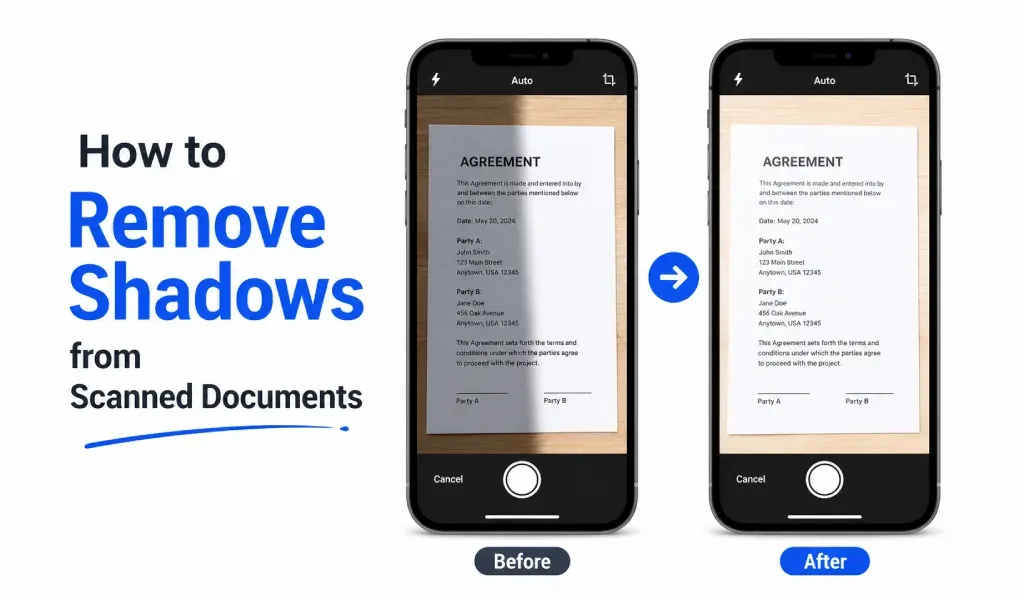
Shadows can ruin a good document scan. You may scan a page with your phone, but the final PDF looks dark, uneven, or hard to read. This usually happens because of poor lighting, wrong camera angle, or your hand blocking the light.
The good news is that you can fix this easily. You do not always need a professional scanner. A good PDF converter and scanner app can help you scan clean documents, remove shadows, and save them as clear PDF files.
Why Do Shadows Appear in Scanned Documents?
Shadows appear when light does not fall evenly on the paper.
This can happen when you scan near a lamp, under direct sunlight, or in a room with low light. Sometimes, your phone itself creates a shadow when you hold it too close to the document.
Another common reason is paper texture. Glossy paper, folded pages, and old documents can reflect light badly. This makes the scanned PDF look patchy.
Use Better Lighting First
The easiest fix is better lighting.
Place the document near natural light, but avoid harsh sunlight. Soft daylight works best. Keep the paper on a flat surface and make sure the light spreads evenly across the page.
Avoid standing between the light and the document. This is a small mistake, but it creates strong shadows.
Keep Your Phone Straight
A tilted camera can make shadows look worse.
Hold your phone directly above the document. Keep it parallel to the paper. This helps the scanner detect edges correctly and capture the page clearly.
If your hand shakes, place your elbows on the table for support. A steady phone gives a sharper scan.
Use Auto-Enhance Features
Most modern document scanner apps include auto-enhance tools.
These tools adjust brightness, contrast, and sharpness. They can reduce dark areas and make text easier to read.
A reliable PDF scanner app can also crop the page, clean the background, and turn the scan into a professional-looking PDF.
This is much better than taking a normal photo and sending it as an image.
Choose Black and White Mode
For text documents, black and white mode often works best.
It removes extra colors, reduces shadows, and makes text stand out. This is useful for forms, notes, receipts, contracts, and printed pages.
If the document has images or stamps, color mode may be better. But for simple text, black and white usually gives a cleaner result.
Clean the Background
Always place the document on a plain surface.
Avoid patterned tables, dark cloth, or messy backgrounds. A clean background helps the scanner app detect the document edges correctly.
This also makes the final PDF look more professional.
Scan Again If Needed
Sometimes, editing cannot fix a bad scan.
If the shadow is too strong, scan the document again with better light. It only takes a few seconds, and the result will be much better.
A clean first scan is always better than heavy editing later.
Final Thoughts
Removing shadows from scanned documents is not difficult.
Use soft light. Keep your phone straight. Choose the right scan mode. Use auto-enhance tools when needed.
With a good PDF converter and scanner app, you can quickly turn paper documents into clean, readable PDF files. It saves time and makes your documents easier to share, upload, and store.