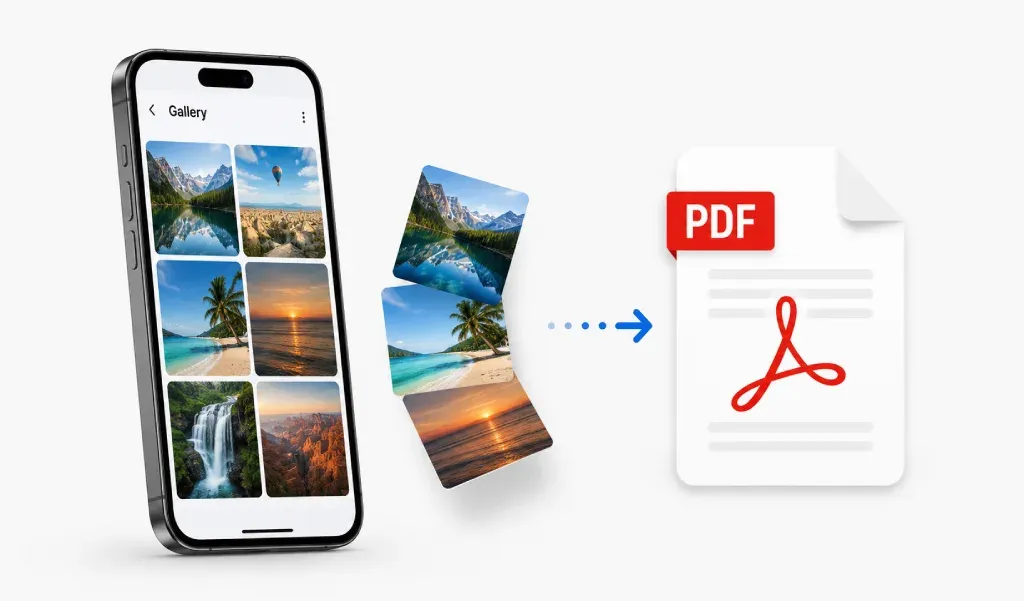
To convert images to PDF on mobile without losing quality, start with clear images. Use high-quality export settings. Avoid heavy compression. Crop each image before saving. A reliable PDF converter app and scanner can keep your final PDF sharp, clean, and easy to share.
Why Image Quality Matters
Image quality affects PDF quality.
A blurry image creates a blurry PDF.
A dark image creates a dull PDF.
A low-resolution image may look pixelated.
So the first rule is simple:
Start with the best image possible.
Start With a Clear Image
Before using an image to PDF converter, check your image.
Make sure:
- The text is readable
- The page is not dark
- The image is not blurry
- No part of the document is cut off
For better results:
- Place the document on a flat surface.
- Use bright and even light.
- Hold your phone steady.
- Capture the full page.
A clean image creates a better PDF.
Use High-Quality PDF Settings
Most mobile PDF converter apps offer quality options.
Always choose high-quality export for important files.
Use it for:
- Contracts
- Invoices
- ID cards
- Forms
- Certificates
- School documents
High quality keeps text sharp.
It also protects small details.
Avoid low-quality export for official files.
It can make text hard to read.
Avoid Heavy Compression
Compression reduces PDF file size.
But it can also reduce image quality.
This is common with image-based PDFs.
Use strong compression only when file size matters.
For readable PDFs, use light compression.
Simple rule:
Keep clarity first. Reduce file size second.
Crop Images Before Converting
Extra background makes a PDF look messy.
Crop each image before saving.
Remove:
- Empty space
- Table edges
- Shadows
- Fingers or hands
- Unwanted background
A clean crop makes the PDF look professional.
It also makes the document easier to read.
Arrange Images in the Right Order
If you convert multiple images, check the order.
Wrong page order can confuse the reader.
This matters for:
- Notes
- Reports
- Assignments
- Forms
- Applications
A good image to PDF converter app lets you reorder pages.
Always review the order before export.
Use PDF for Better Sharing
PDF is better than sending many images.
It keeps everything in one file.
It opens on most devices.
It is easier to email.
It is better for online uploads.
That is why many users convert JPG, PNG, screenshots, and photos to PDF.
Quick Checklist Before Saving
Before saving your PDF, check this:
If yes, your PDF should look clean and sharp.
Final Thoughts
Converting images to PDF on mobile is easy.
Keeping quality high needs care.
Start with clear images.
Use high-quality settings.
Avoid heavy compression.
Crop and arrange pages before saving.
That is the best way to create a sharp, readable PDF from your phone.