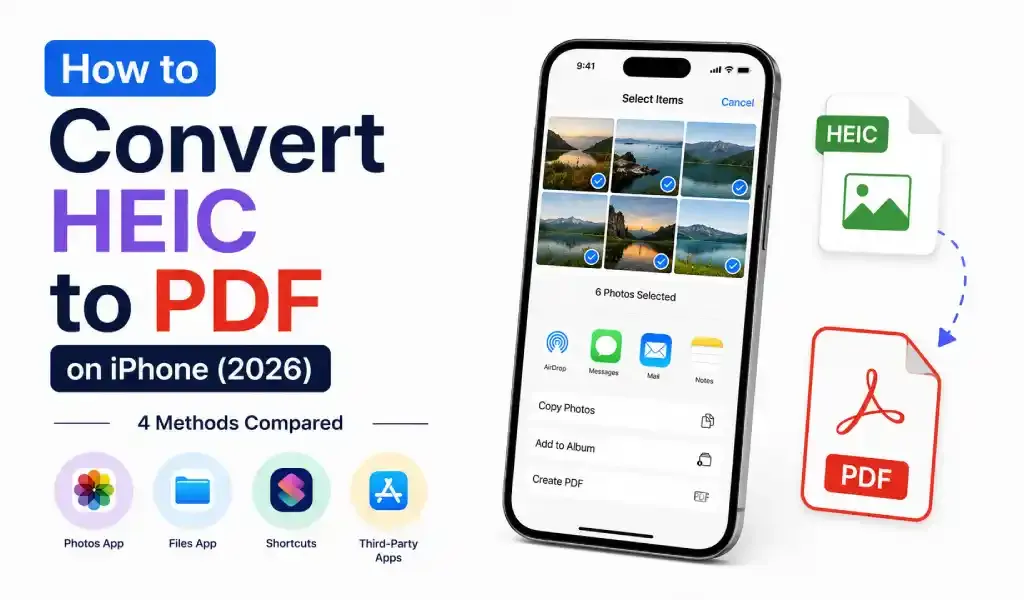
You can convert HEIC to PDF on iPhone using the Files app's "Create PDF" action, the Photos app's print-and-pinch trick, a custom Shortcut, or a dedicated converter app. Apple's built-in tricks work fine for a single photo. The moment you're dealing with several images, scanned pages, or a file size limit on the other end, a purpose-built converter saves real time.
That's the short version. Here's how each method actually works, and when each one makes sense.
Why Are iPhone Photos Saved as HEIC in the First Place?
This is worth understanding before picking a method, because it explains why the problem exists at all.
Apple switched from JPG to HEIC as the default photo format back in iOS 11. The reason was practical: HEIC compresses images far more efficiently than JPG while keeping nearly the same visual quality, often at roughly half the file size. Great for your phone's storage. Not so great the first time you try to upload a photo to a website that has never heard of a .heic file.
That mismatch is exactly why "convert HEIC to PDF" is such a common search. The photo looks perfect on your phone, and then a job portal, a university application, or an old printer driver flatly refuses to open it. PDF sidesteps all of that. It opens the same way on every device, keeps its formatting intact, and is the format almost every official form actually asks for.
Method 1: The Files App "Create PDF" Trick
This is the fastest option if your photos are already sitting in the Files app, or if you access them there instead of through Photos.
- Locate the HEIC image (or select several at once).
- Tap and hold, or select multiple files and tap the "More" (•••) button.
- Choose Create PDF from the menu.
iOS builds the PDF automatically and saves it right there.
Where it falls short: there's no control over compression or quality, so files can come out larger than they need to be. Behavior with multiple selected images can also be a little inconsistent depending on your iOS version and how the files are stored.
Method 2: The Photos App "Print, Then Pinch" Trick
This one feels like a trick because it technically is one, but it's genuinely useful and works for multiple photos at a time.
- Open the photo (or select several) in the Photos app.
- Tap the Share icon, then choose Print.
- On the print preview screen, pinch outward on the small page thumbnail.
- This opens a full, swipeable preview of every page. Tap the Share icon again from here, and you can save or send it as an actual PDF.
Where it falls short: it's not discoverable at all if nobody tells you about it, there's no quality adjustment, and it's easy to accidentally tap an actual printer instead of pulling up the PDF preview.
Method 3: Automate It With a Shortcut
If you convert HEIC files often, building a one-time Shortcut pays off.
- Open the Shortcuts app and create a new shortcut.
- Add the Select Photos action.
- Add the Make PDF action.
- Add Save to Files (or send it straight to the Share Sheet).
Once it's built, add it to your Home Screen or the Share Sheet, and future conversions become a single tap.
Where it falls short: setup takes a few minutes and involves enough steps that it's not for everyone, and it still gives you no real control over output quality or file size.
Method 4: Use a Dedicated HEIC to PDF Converter App
Apple's tools above are all workarounds. They weren't built specifically for this job, which is why every one of them has a catch. A dedicated converter app exists to remove exactly those catches: no hidden gestures, no shortcut-building, no guessing whether the file came out too big.
I use PDF Converter HEIC to PDF for this myself, mainly on the days when I've got a handful of HEIC photos to deal with at once — signed lease pages, a form I filled out by hand, or a stack of receipts. Select the images, reorder them if the pages need to be in a specific sequence, convert, done. It also lets you adjust output quality before saving, which matters more than people expect when the destination has a strict file size cap (something I went into more detail on in the piece about shrinking PDF file size on iPhone).
To be fair, if you just need to convert one photo one time, the free Photos trick above is completely fine and you don't need to install anything. An app earns its place once you're doing this regularly, handling multiple images that need to stay in order, or need to control how large the final file is.
Quick Comparison of All Four Methods
| Method | Setup required | Multiple images at once | Quality control | Best for |
|---|---|---|---|---|
| Files app "Create PDF" | None | Yes, but ordering can be inconsistent | No | Quick, single-file conversions |
| Photos print & pinch | None | Yes, one page per image | No | Occasional use, small batches |
| Shortcuts automation | ~5 minutes, one time | Yes | No | Frequent users who want one-tap speed |
| Converter app | None | Yes, with page reordering | Yes | Scanned documents, batches, strict file size limits |
Frequently Asked Questions
Why won't some websites accept my iPhone photos?
Because your phone is likely saving them as HEIC by default, and plenty of older systems, printers, and upload forms don't recognize that format. Converting to PDF (or JPG) fixes it instantly.
Does converting HEIC to PDF reduce image quality?
Not in any way you'd notice on a document. A small amount of compression happens during conversion, but at normal settings, scanned text and everyday photos look identical to the original.
Can I convert several HEIC photos into a single PDF?
Yes, all four methods above support this. The Files app version can be the least predictable about page order, so double-check the result before sending it anywhere important.
Is HEIC the same thing as HEIF?
HEIF is the general image format standard. HEIC is Apple's specific implementation of it. On an iPhone, you can treat the two terms as the same thing in practice.
Do I need an internet connection to convert HEIC to PDF?
No. The Files app, the Photos trick, Shortcuts, and most converter apps all do this conversion locally on your device, with no upload required.
Should I convert my entire camera roll to PDF?
No, there's no reason to. Save this for documents, forms, receipts, and scans, anything that needs to be shared as one clean, universally readable file, not everyday photos.
Final Thoughts
Apple's built-in tricks handle the occasional HEIC to PDF conversion just fine, and the print-and-pinch method is worth remembering even if you never install another app. But once you're doing this often, juggling more than a couple of images, or need the final file to hit a specific size, a dedicated converter takes the guesswork out of it. Pick whichever method matches how often you actually run into this problem, not whichever one sounds the most impressive.