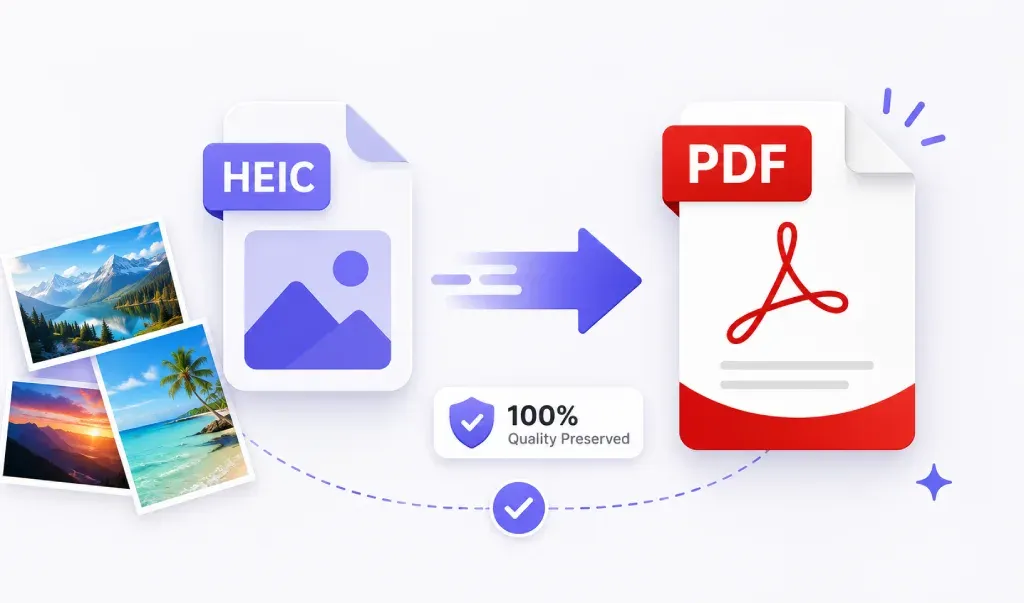
To convert HEIC photos to PDF without losing quality, the most effective method is using a high-DPI PDF Converter and Scanner App. This preserves the original pixels and metadata of your Apple images without adding compression artifacts.
Why HEIC Quality Often Drops
Apple’s HEIC format is highly efficient. However, many basic converters treat them like small web images. They "crunch" the data, leaving you with a blurry PDF.
To keep that crisp, professional look, you need a tool that handles lossless conversion. The Best Ways to Convert HEIC to PDF
1. Use a Dedicated Scanner App (Best for Quality)
A professional app is the gold standard. It
- Maintain Original Resolution: It doesn't downscale your 12MP or 48MP photos.
- Smart Enhancements: Auto-detects document edges and fixes lighting.
- Batch Processing: Convert your whole gallery into one PDF in seconds.
Try PDF Converter HEIC to PDF app. It is specifically optimized for HEIC files. It ensures your documents look exactly like the original photo—sharp, clear, and ready for print.
2. The iOS "Pinch" Shortcut
Need a quick fix?
- Open your Photos App.
- Choose your HEIC image and tap Share.
- Tap Print (but don't actually print).
- Pinch out on the photo preview with two fingers.
- Tap Share again to save it as a high-quality PDF.
3. Files App Method
Move your photos to the Files App.
- Long-press the image.
- Select Quick Actions.
- Tap Create PDF.
Key Features to Look For
When searching for the right tool, keep these keywords in mind:
- Lossless HEIC to PDF: Ensures no pixel loss.
- High-DPI Conversion: Keeps the document sharp for printing.
- Batch HEIC to PDF: For converting multiple files at once.
- OCR Scanner: To make your PDF text searchable.
Pro Tips:
- Avoid Screenshots: Converting an original HEIC is always better than a screenshot.
- Check Your Lighting: Good lighting in the original photo means a cleaner PDF.
- Use Premium Tools: Free web-based converters often sell your data and ruin image quality.
Final Verdict
If you want professional results, don't settle for "okay." Use a dedicated PDF Converter and Scanner App to turn your iPhone photos into stunning, high-resolution documents instantly.
Stop losing quality. Start converting like a pro.
Download PDF Converter HEIC to PDF App Now
https://apps.apple.com/us/app/pdf-converter-heic-to-pdf/id6466396481