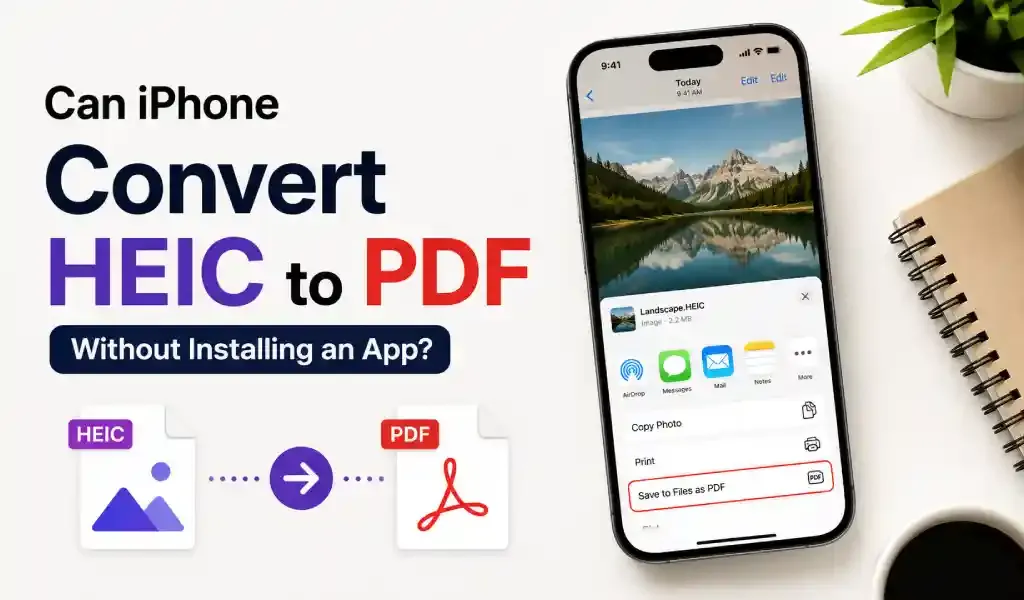
Yes. An iPhone can convert a HEIC image to a PDF without installing a third-party app.
On newer versions of iOS, Apple’s built-in Preview app can open an image and export it directly as a PDF. This makes it possible to turn photos, scanned documents, receipts, forms, and other HEIC files into PDFs without uploading them to an online converter.
That said, the exact method depends on your iOS version. If you have a recent iPhone with the Preview app, the process is particularly straightforward.
SEO Basics
SEO Title: Can iPhone Convert HEIC to PDF Without Installing an App?
Meta Description: Learn how to convert HEIC to PDF on iPhone without installing an app, using built-in iOS tools to create and save PDFs in just a few steps.
Primary Keyword: convert HEIC to PDF on iPhone
Secondary Keywords: HEIC to PDF iPhone, convert HEIC image to PDF, iPhone HEIC converter, save HEIC as PDF, convert photo to PDF iPhone
Can You Convert HEIC to PDF on iPhone Without an App?
Yes, you can convert a HEIC image to PDF directly on an iPhone without downloading a separate converter.
Apple's newer iOS versions include Preview, a built-in file and document utility that can open images and export them in several formats, including PDF. Apple specifically lists HEIC, JPEG, JPEG-2000, PDF, PNG, and TIFF among the supported export formats.
This is useful because HEIC is excellent for saving high-quality photos while keeping file sizes relatively small, but PDF is often the format required for applications, business documents, email attachments, forms, and official submissions.
So if someone sends you a .heic image and asks for a PDF, you don't necessarily need another app.
How to Convert HEIC to PDF on iPhone
If your iPhone has the Preview app, converting the file takes only a few taps.
1. Open the HEIC Image in Preview
First, locate the HEIC file on your iPhone.
Open Preview and browse to the image. Preview can access files from available locations through its Browse section, and it can open both PDFs and images.
If the HEIC image is currently in another location, such as a message or email, save it to your iPhone first so you can access it as a file.
2. Open the Actions Menu
Once the image is open in Preview, tap the Actions Menu next to the filename.
This menu contains options for working with the file, including exporting it into another format.
3. Choose Export
Tap Export.
Your iPhone will show the available formats. According to Apple's current iPhone documentation, Preview can export images as HEIC, JPEG, JPEG-2000, PDF, PNG, or TIFF.
4. Select PDF
Choose PDF from the format list.
You can also adjust the file size using the available compression control when needed. This is particularly useful if you're sending the PDF through email or uploading it to a website with a file-size limit.
5. Save or Share the PDF
After exporting, save the new PDF where you want it or share it with another person or service.
You can rename and move the resulting PDF later from Preview as well.
That's it. Your HEIC image is now a PDF without installing a dedicated converter.
What If Your iPhone Doesn't Have Preview?
This is where things can get confusing.
The built-in Preview app and its current export features depend on your iOS version. If you are using an older version of iOS and don't see Preview or the HEIC-to-PDF export option, the steps may be different.
One alternative built into iOS is the Print workflow. The iPhone can print photos directly from the Photos app through the Share menu.
Depending on your iOS version, the print interface can also be used as a way to create a PDF instead of physically printing the image. However, the available options can vary between iOS releases, so the Preview method is preferable when it is available.
Can You Convert Multiple HEIC Images Into One PDF?
Yes, but this is where the process becomes less convenient.
If you have several HEIC photos—such as the pages of a document—you may want them combined into a single PDF rather than creating separate PDF files.
For a small number of images, Apple's built-in tools may be enough depending on your iOS version and workflow. For larger batches, however, a dedicated PDF tool can make the process easier because it can provide options for arranging, merging, rotating, cropping, and compressing pages.
For example, someone converting five photos of a signed document probably wants one five-page PDF, not five separate files.
Does Converting HEIC to PDF Reduce Image Quality?
It can, depending on the export settings and the content of the image.
The important distinction is that converting an image to PDF doesn't automatically mean the original image quality will be preserved perfectly. The resulting PDF may use different compression or image settings.
Preview gives you a file-size adjustment when exporting, so you can balance quality and file size.
For a document containing small text, signatures, or fine details, avoid excessive compression. A slightly larger PDF is usually better than a blurry document.
For casual photos, a smaller file may be perfectly acceptable.
Why Convert HEIC to PDF in the First Place?
HEIC is convenient for storing images on Apple devices, but PDF is more widely accepted as a document format.
You may need to convert a HEIC image to PDF when:
- A website only accepts PDF uploads
- You need to submit a scanned form
- Someone requests a document in PDF format
- You want several document pages in a standardized format
- You need to email a document that should look the same on different devices
- You are preparing receipts, certificates, applications, or signed paperwork
PDF also works better for document-oriented workflows because it can contain multiple pages and can be viewed using many different devices and applications.
HEIC vs. PDF: Which Format Should You Use?
The better format depends on what you're doing.
| HEIC | |
|---|---|
| Best for photos | Best for documents |
| Efficient image storage | Designed for document sharing |
| Common on Apple devices | Widely supported across platforms |
| Usually smaller for photos | Better for multi-page documents |
| Image-focused | Document-focused |
If you're simply storing photos on your iPhone, HEIC is usually the better choice.
If you're submitting a document, sending paperwork, or combining pages, PDF is generally more practical.
Do You Need an Online HEIC-to-PDF Converter?
Not necessarily.
If your iPhone supports Apple's built-in Preview export feature, there's little reason to upload a normal HEIC image to an online converter just to turn it into a PDF.
Using a built-in tool also means you can keep the file on your device rather than sending a potentially sensitive document to a third-party website.
This matters especially for documents containing personal information, signatures, identification details, financial information, or business records.
A Better Option When You Need More Than Basic Conversion
Built-in iPhone tools are great when the job is simply HEIC → PDF.
But document workflows often involve more than conversion. You may need to scan several pages, crop them, rearrange pages, sign a PDF, add annotations, compress the final file, or protect it with a password.
Apple's current Preview app already handles several of these tasks. It can scan documents into PDFs, annotate files, and even lock PDFs with a password.
For more advanced workflows, a dedicated PDF app can still be useful. But for a one-off HEIC conversion, installing another app is often unnecessary.
Frequently Asked Questions
Can I convert HEIC to PDF directly on my iPhone?
Yes. On recent iOS versions, open the HEIC image in Preview, choose the Actions Menu, tap Export, select PDF, and save the resulting file.
Does iPhone have a built-in HEIC to PDF converter?
Yes. Apple's Preview app can export images, including HEIC files, as PDF without requiring a separate converter app.
Can I convert HEIC to PDF without Wi-Fi?
Yes. The conversion can be performed using built-in iPhone tools, so an internet connection isn't inherently required for the conversion itself.
Can I convert a HEIC photo into a PDF for free?
Yes. If your iPhone supports the built-in Preview export function, you can convert the image without paying for a third-party converter.
Is PDF better than HEIC for documents?
Usually, yes. HEIC is primarily an image format, while PDF is designed for sharing and preserving documents. If you're submitting a form, receipt, certificate, or scanned paperwork, PDF is generally the more useful format.
Final Verdict
You don't need to install an app just to convert a HEIC image to PDF on a modern iPhone. Apple's built-in Preview app can open the image and export it as a PDF, with options to adjust the resulting file size.
For a single image or a simple document, this built-in method is probably all you need. If you're regularly handling multiple pages or need advanced PDF features, a dedicated PDF app can save time—but for basic HEIC-to-PDF conversion, your iPhone already has the tools to get the job done.